A useful client recording is not a narrated screen wander. It has a clear purpose, protects private data, shows the evidence and ends with an owner and next action. The tool should match whether you need a fast link, polished tutorial, local master file or searchable transcript.
What users are actually trying to solve
Agree how recordings will be shared during SEO client onboarding, and keep a recoverable master copy in your agency storage and backup system.
SEO consultants and agencies use recordings for audits, monthly reports, implementation instructions and client training. They need understandable audio, cursor visibility, captions, secure sharing, appropriate retention and a workflow that does not consume more time than the meeting it replaces.
How we evaluated these tools
We compared recording speed, screen and camera layouts, editing, captions, annotations, privacy, hosting, exports, branding, operating-system support and suitability for repeatable client communication.
Quick comparison
# |
Option |
Best for |
Main caution |
|---|---|---|---|
1 |
Fast asynchronous client updates |
Cloud storage, plan limits and link permissions |
|
2 |
Free local recording and advanced scenes |
Learning curve and no built-in hosted client portal |
|
3 |
Polished tutorials and training |
Higher cost and longer editing time |
|
4 |
Presentation-style sales and reports |
Cloud workflow and subscription limits |
|
5 |
Accessible recording and lightweight editing |
Feature limits vary by plan |
|
6 |
Annotated screenshots and short explanations |
Not designed for complex video production |
|
7 |
Transcript-based editing |
Cloud processing and usage limits |
|
8 |
Screenshots, GIFs and workplace sharing |
Cloud-link governance |
|
9 |
Browser editing and captions |
Upload time and plan-based export restrictions |
|
10 |
Microsoft users and straightforward editing |
Business features depend on Microsoft plan |
Top 10 options reviewed
1. Loom
Best for: Fast asynchronous client updates
Loom makes it quick to record a screen, camera and voice and send a link. Viewer comments and transcripts support asynchronous review. Check workspace ownership, download rights and retention before using it as the only archive.
Check before choosing: Cloud storage, plan limits and link permissions
2. OBS Studio
Best for: Free local recording and advanced scenes
OBS Studio is open-source software for high-quality local recording and streaming. It offers detailed control over sources, audio and output. You must provide your own editing, hosting and secure sharing workflow.
Check before choosing: Learning curve and no built-in hosted client portal
3. Camtasia
Best for: Polished tutorials and training
Camtasia combines recording with a timeline editor, callouts, zooms and training-oriented effects. It is valuable when a tutorial will be reused. It is excessive for a two-minute weekly status update.
Check before choosing: Higher cost and longer editing time
4. Tella
Best for: Presentation-style sales and reports
Tella helps creators combine screen, camera and designed layouts into polished short videos. It suits proposals, case studies and executive reports. Test export quality and privacy controls before client use.
Check before choosing: Cloud workflow and subscription limits
5. ScreenPal
Best for: Accessible recording and lightweight editing
ScreenPal offers screen recording, screenshots, editing and hosting across common devices. It covers a broad range of simple tutorial needs. Compare caption, branding and hosting controls in the intended edition.
Check before choosing: Feature limits vary by plan
6. Snagit
Best for: Annotated screenshots and short explanations
Snagit excels at capturing, marking up and organizing visual explanations. Its video features suit quick feedback. Choose Camtasia or another editor when multi-scene production is required.
Check before choosing: Not designed for complex video production
7. Descript
Best for: Transcript-based editing
Descript lets users edit recordings through text and provides transcription and audio tools. It is useful for turning a long walkthrough into a concise report. Review client confidentiality before uploading sensitive recordings.
Check before choosing: Cloud processing and usage limits
8. Zight
Best for: Screenshots, GIFs and workplace sharing
Zight combines screen captures, short recordings, GIFs and link sharing. It works well for bug reports and implementation feedback. Teams should set naming, retention and external-sharing rules.
Check before choosing: Cloud-link governance
9. VEED
Best for: Browser editing and captions
VEED provides browser-based recording, captions, templates and editing. It is convenient for branded explainers without installing a full editor. Large recordings can be affected by upload speed and browser stability.
Check before choosing: Upload time and plan-based export restrictions
10. Microsoft Clipchamp
Best for: Microsoft users and straightforward editing
Clipchamp offers browser and Windows-oriented recording and editing with templates and exports. It is a practical choice when already included in a Microsoft environment. Confirm account ownership and commercial features for the organization.
Check before choosing: Business features depend on Microsoft plan
A five-part recording structure
- State the decision or purpose in one sentence.
- Show the baseline or evidence.
- Explain what changed or what is wrong.
- Demonstrate the recommended action.
- Name the owner and deadline.
Privacy pre-flight
- Close email, messages and unrelated client tabs.
- Disable notifications.
- Use a clean browser profile.
- Hide API keys, passwords and personal data.
- Check the share link in a private window.
- Set expiry or named access for sensitive videos.
Monthly SEO report recording
Open with outcomes and important changes, not the ranking dashboard. Explain data limitations, show two or three decisions and link to the written report. Keep the recording short enough that a decision-maker will watch it.
How to choose without wasting money
Choose a link-first recorder for frequent updates, a local recorder for confidentiality or unreliable upload, and a full editor for reusable training. Clear audio matters more than a decorative camera frame.
Implementation checklist
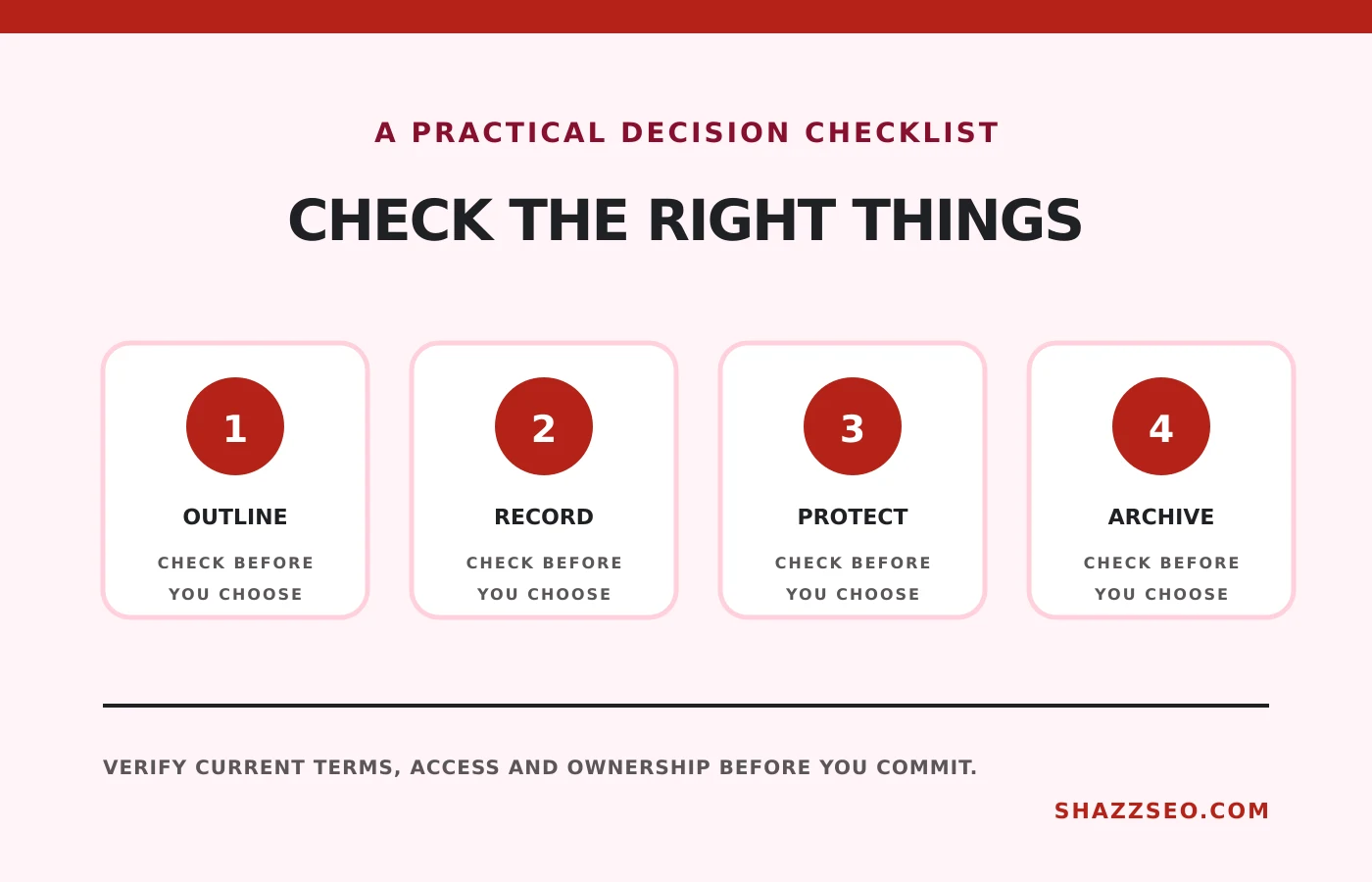
- Write a five-line outline
- Use a clean recording profile
- Test microphone and resolution
- Zoom interfaces for mobile viewers
- Add captions where useful
- Verify sharing permissions
- Save important final files
- Delete sensitive source material on schedule
Frequently asked questions
How long should a client report video be?
Often five to ten minutes. Use a longer format only when the work genuinely requires training or detailed review.
Is Loom better than OBS?
Loom is faster for hosted sharing; OBS gives local control and advanced scenes. They solve different needs.
Should every monthly report include video?
No. Use video when visual explanation improves a decision. Maintain a written record of metrics, actions and owners.
Can I record a client call?
Only with appropriate consent and privacy handling under the relevant laws and agreement.
Final recommendation
Loom is the most convenient client-update tool, OBS is the strongest free local recorder and Camtasia is better for reusable training. A concise structure and privacy check will improve the result more than extra effects.
Plans, storage and privacy features change. Obtain consent before recording people or confidential systems.