Senior AI SEO Consultant
Custom ChatGPT and Claude tools that run audits, content and reporting on autopilot — built on more than 10 years of professional SEO experience.
10+ Yrs Ranking SitesI'm Shahzaib Ul Hassan, a Senior AI SEO Consultant & AI Automation Engineer. I help businesses grow with search. I engineer durable #1 rankings and organic traffic that converts, and I build AI SEO automation with ChatGPT and Claude that handles the busywork for you.
 shazzseo.com › semantic-seo
RANKING #1 ▲
shazzseo.com › semantic-seo
RANKING #1 ▲
Recognized & Featured By
Senior AI SEO consultant and automation engineer who builds custom tools — founder & CEO of ShazzSEO and Otrainings, ranking brands across the USA since 2009.

Shahzaib Ul Hassan is a senior AI SEO consultant, automation engineer and web developer from Pakistan, and the founder & CEO of ShazzSEO and Otrainings.
He has worked in blogging, SEO and web development since 2009 — ranking brands on Google, building fast websites, and training the next generation of SEOs. A trusted industry speaker featured by Payoneer and Fiverr Asia, Shahzaib has completed 1,000+ projects and ranked 177 websites and is recognized as a top-rated, award-winning freelancer.
His specialty is semantic SEO — and, increasingly, AI SEO: he maps the entire topic, engineers entity-level relevance, and builds custom AI tools with ChatGPT & Claude that automate the work — for durable rankings, not short-lived spikes.
A decade-plus of recognized expertise — certified, published, awarded and trusted to teach thousands.
Custom ChatGPT and Claude tools that run audits, content and reporting on autopilot — built on more than 10 years of professional SEO experience.
10+ Yrs Ranking Sites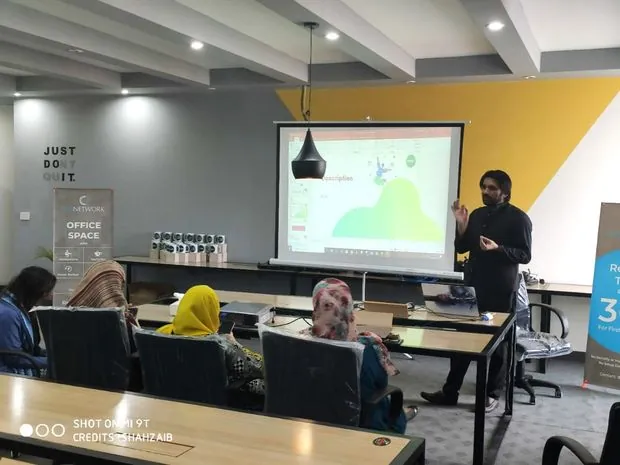
Live, hands-on SEO training delivered to thousands of students through Otrainings.
30K+ Students Trained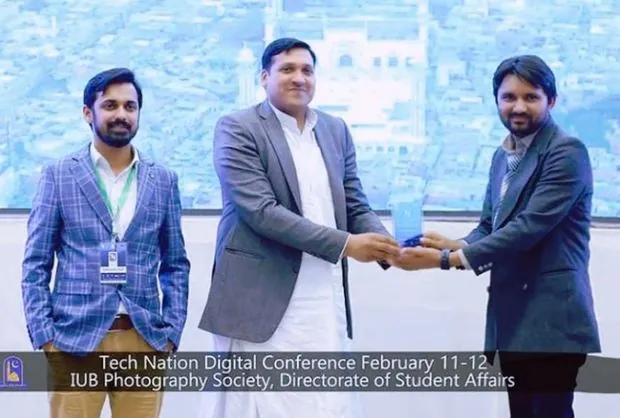
Invited to share expertise on major platforms including Payoneer & Fiverr Asia.
Payoneer & Fiverr
Top-rated, award-winning blogger & freelancer — and founder & CEO of ShazzSEO.
Top-Rated WinnerEvery service in one place, each with a clear starting price. Hit View service on any of them for the full detail, pricing and FAQs before you commit to anything.
Durable #1 rankings and organic traffic that converts — built on semantic relevance and topical authority, not tricks.
A complete, done-for-you SEO overhaul for your entire site — technical fixes, on-page, topical structure and content, handled end to end.
Fast, responsive, SEO-ready websites engineered to rank from day one — scoped to your project on a call.
Deep, intent-mapped research using my Keyword Golden Ratio method to find low-competition wins you can rank for this week.
Custom AI tools built with ChatGPT & Claude that run your SEO busywork on autopilot — audits, content, reporting and internal linking.
Usually it’s not your builder, and it’s not your design. It’s that nothing on your pages tells Google — or ChatGPT — what you do, who you help, and why they should call you. Here’s what goes wrong on each platform, and how I fix it.
Your site only gets people who already know you — referrals, Instagram, a card you handed someone. New customers searching on Google never see it.
I rewrite your pages around the words people really search, and make the site load faster. You start getting found.
Competitors who are worse at the job rank above you. Everyone says it’s because you’re on Wix, so now you’re staring at a quote for a whole new website.
You rarely need a new site. I finish the Wix SEO setup nobody did and fix the slow pages — and save you the rebuild.
An agency built your site fast, and it’s fine. Trouble is, it’s nearly the same site they gave forty other businesses. Google has no reason to pick you.
I make your site sound like you, not a template, and give every location its own page. Then Google has a reason to pick you.
Your site looks incredible and brings in almost nothing. Everyone who visits already knew your name before they got there.
Webflow fills nothing in for you, so most sites launch with the SEO fields blank. I fill them in. You start getting found.
Everyone says your site looks great. It still doesn’t bring you work. It’s built like a poster — big picture, few words — so Google has nothing to read.
I add the words and structure Google needs — without changing how your site looks. ChatGPT starts naming you too.
You’ve paid for SEO before. You got a monthly report full of numbers and no new customers. Now you don’t know who to believe.
Same method on any platform. I report calls and customers, not vanity numbers. If I can’t help, I’ll say so on the first call.
Six automated stages take your site from raw crawl data to full topical authority. The left side is the engine running. The right side is what it means, in plain English.
Five specialist disciplines behind every campaign. Explore semantic SEO, keyword research, local search, nationwide USA SEO and AI search visibility.
Semantic SEO optimizes for meaning, not matching. Google stopped ranking pages by keyword repetition years ago — today it maps your content against a web of related entities, questions and subtopics. A page about "running shoes" that never mentions cushioning, pronation, heel drop or marathon training reads as incomplete, no matter how many times the keyword appears.
Topical authority is what happens when you cover that entire web. I map every entity and question around your topic, then build a hub-and-spoke architecture — one definitive pillar page supported by focused cluster pages, all interlinked. Google starts treating your domain as the source for the topic, and rankings compound: each new page lifts every page around it.
This is why my clients survive algorithm updates that wipe out keyword-stuffed competitors. This is how modern Semantic SEO and topical authority actually work.
The Keyword Golden Ratio is my special-ops method for finding keywords so under-served that new pages can rank in days, not months. The math is simple: divide the number of pages with the exact keyword in their title (Google's allintitle: count) by the monthly search volume.
When the ratio lands below 0.25 on a keyword under 250 searches a month, demand outstrips supply — Google literally doesn't have enough dedicated pages to serve searchers. I mine hundreds of these golden keywords per project, stack them into clusters, and use the fast wins to feed authority into the harder, high-volume terms. Quick traffic and long-term dominance from the same research.
Try the calculator with any keyword you're considering. It's the same KGR keyword research method I use to find low-competition wins.
For local businesses, the Google map pack is where the money is — the three businesses shown above the regular results capture the majority of calls and direction requests. Google ranks them on three levers: relevance (categories, services, profile completeness), prominence (reviews, citations, links) and proximity.
I optimize all three: full Google Business Profile rebuilds with the right primary and secondary categories, review velocity systems that generate consistent five-star reviews with keyword-rich responses, NAP-consistent citations across the directories Google trusts, and geo-targeted landing pages that anchor your map rankings to your website's authority.
This is the exact Google Business Profile ranking process I follow for local clients.
I help businesses across the United States compete in city, state, and nationwide search results. Every strategy is shaped around U.S. search intent, competitive SERPs, customer language, and the local signals Google uses to decide which business deserves visibility.
Local companies get the complete stack: Google Business Profile optimization, city and state landing pages, NAP-consistent citations, review growth systems, and location-based topical authority. Multi-state and national brands get scalable site architecture, semantic content clusters, technical SEO, and digital authority built for wider U.S. markets.
Delivery is fully remote, with clear reporting and collaboration designed for businesses in every U.S. time zone.
Search is splitting in two. Millions of buying decisions now start inside ChatGPT, Perplexity, Gemini and Google's AI Overviews — and those engines don't show ten blue links. They give one answer and cite a handful of sources. If you're not a cited source, you're invisible.
GEO (Generative Engine Optimization) is how I make brands citable: entity-rich content structured into extractable answer blocks, schema that machines parse instantly, statistics and original data AI engines love to quote, and presence on the third-party platforms — Reddit, Quora, review sites — that LLMs lean on when forming answers. My semantic SEO foundation gives clients a head start, because AI engines reward the same thing Google does: genuine topical authority.
This is the biggest land-grab in search since 2009 — and almost nobody in the market is doing it properly yet. This is what AI GEO SEO (Generative Engine Optimization) is really about.
From single-location businesses to multi-state brands — every campaign localized to its market. 100% remote delivery.
Scroll the curve and watch the journey — five SEO phases that take a site from page 10 to a top-ranking, traffic-driving final position.
Deep technical & content audit to find what's holding your rankings back.
Intent-mapped clusters that match what buyers actually search for.
Semantic structure, content & relevance engineered into every page.
Check live pages, links and structured data after implementation.
The payoff — durable top positions & organic traffic that converts.
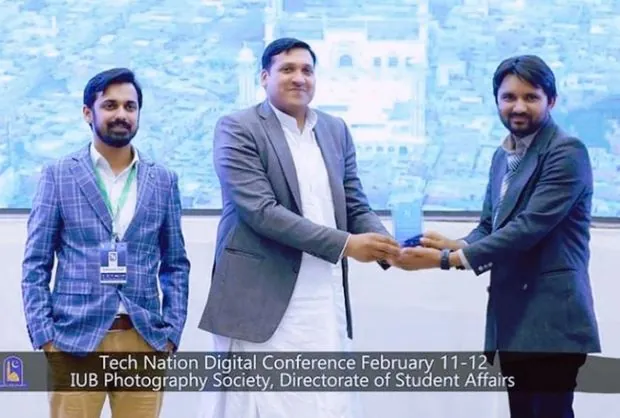
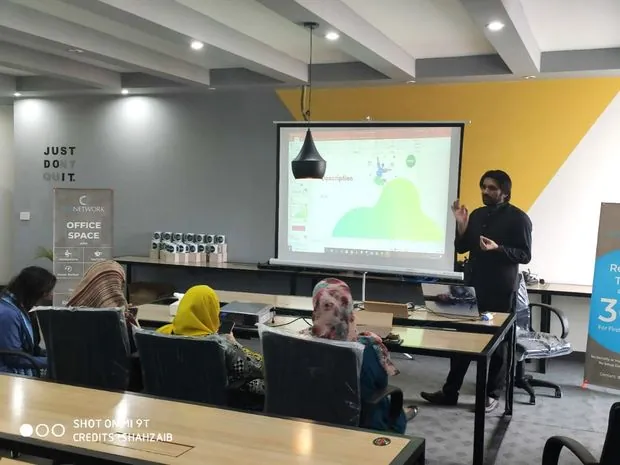
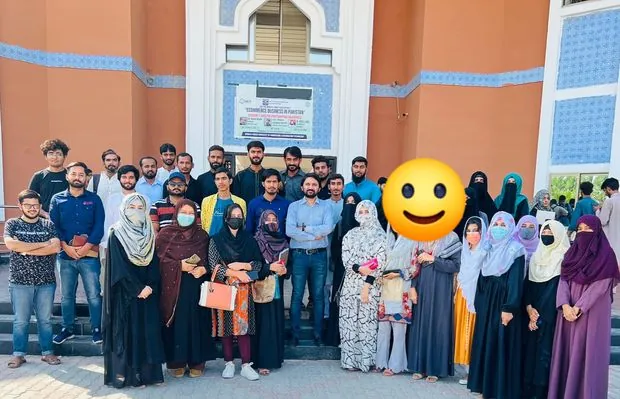
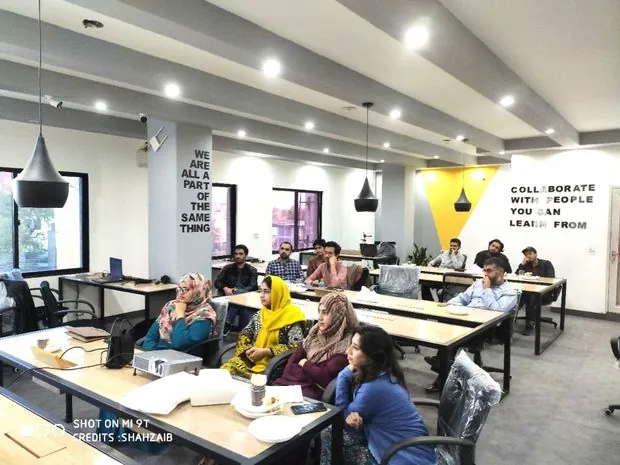
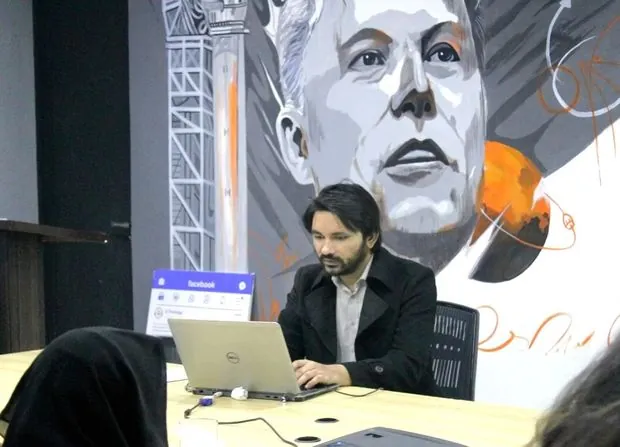
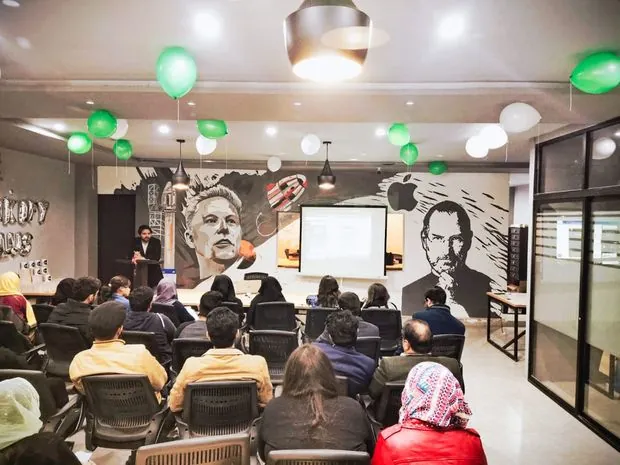
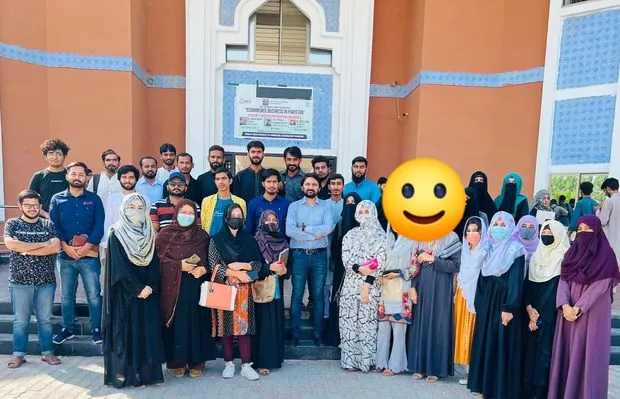
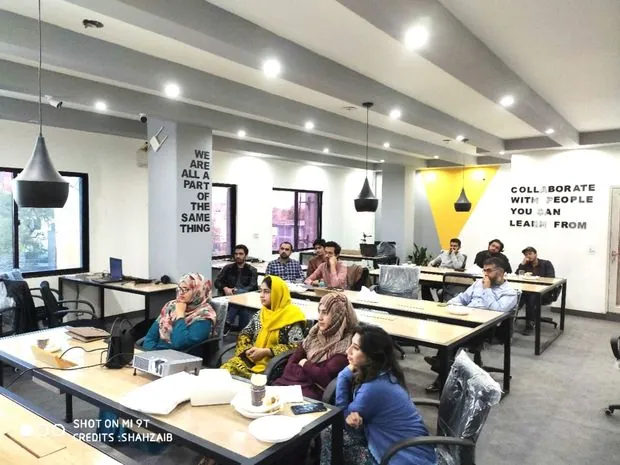
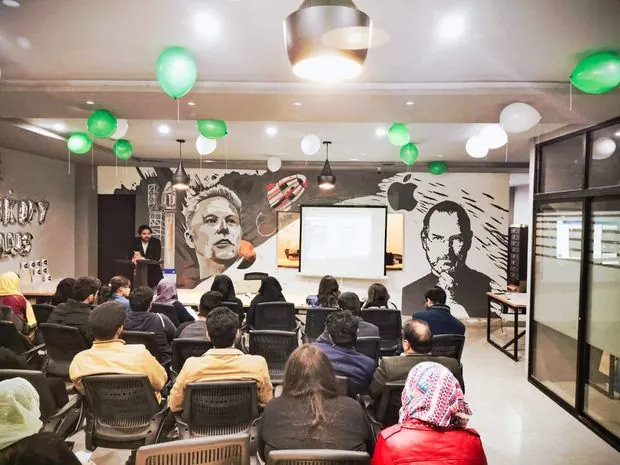
Awards, an authored book, conference stages and packed training rooms — the work and proof behind the rankings.
Explore the project write-ups. Our technical SEO case study documents the issues found, changes made and live verification, with ranking outcomes measured separately.
Real words from people whose rankings & organic traffic I've helped transform.
Working with Shahzaib has been a game-changer for our business. His comprehensive website audit and strategic recommendations helped us fix critical issues — resulting in a noticeable jump in our search rankings. His SEO expertise is unparalleled.

Shahzaib is an exceptional SEO and digital marketing expert. His deep understanding of technical SEO and keyword research has significantly improved our website's visibility and organic traffic. His dedication and passion are truly inspiring.

The things people ask me most before we start ranking together.
Shahzaib Ul Hassan is a senior AI SEO consultant and automation engineer from Pakistan, and the founder & CEO of ShazzSEO and Otrainings. Working in SEO since 2009, he helps brands rank #1 on Google, builds fast websites, and has completed 1,000+ projects and ranked 177 websites. He's a top-rated, award-winning freelancer and a trusted speaker featured by Payoneer and Fiverr Asia.
ShazzSEO is the semantic SEO practice founded by Shahzaib Ul Hassan. It helps businesses worldwide reach the top of Google through topical authority, technical SEO, keyword research, web development and content that converts — durable results built on entity-level relevance rather than keyword tricks.
Semantic SEO optimizes for topics and meaning, not just isolated keywords. Instead of repeating a phrase, I map the entities, questions and subtopics around your subject so Google understands your site as a genuine authority. That earns broader, more durable rankings — and protects you from algorithm updates that punish thin, keyword-stuffed pages.
SEO is a compounding investment. Most projects see early movement within 4–8 weeks, with meaningful ranking and traffic gains typically landing around the 3–6 month mark, depending on competition, your site's current authority and how much content we build. I focus on durable growth rather than short-lived spikes.
No honest SEO can guarantee a specific position — Google's ranking factors aren't controlled by any agency. What I do guarantee is proven, white-hat strategy, transparent reporting, and consistent progress. Across more than 10 years that approach has put a lot of clients on page one and kept them there.
Packages range from a single optimized landing page (Bronze/Silver) to a 3-page website with advanced on-page and technical SEO (Gold). Every plan includes the right technical setup and clear guidance to rank. Need something custom — e-commerce, multi-location or ongoing content? Book a call and I'll scope it to your goals.
I work with businesses across all 50 U.S. states — including local companies, multi-location brands, e-commerce, SaaS, blogs and service businesses. Semantic SEO principles apply to any niche; I simply tailor the topic map and strategy to your market.
Yes. Alongside SEO I build fast, responsive, SEO-ready websites, and I fix technical issues on existing sites. I'm also an active instructor — I've trained 1,000+ projects completed and 177 websites ranked through Otrainings — so if you'd rather learn to do it yourself, mentorship is available too.
The Keyword Golden Ratio divides the number of Google results with the exact keyword in their title (allintitle) by the keyword's monthly search volume. A ratio below 0.25 on a keyword with under 250 monthly searches means demand outstrips supply — pages targeting it can rank within days. I use KGR keywords to generate fast traffic wins that feed authority into bigger, more competitive terms.
Yes. Google My Business ranking is one of my core services. I optimize the three levers Google uses for the local map pack — relevance (categories, services, profile completeness), prominence (review velocity, citations, links) and proximity — plus geo-targeted landing pages that connect your website's authority to your map listing.
GEO is optimization for AI answer engines — ChatGPT, Perplexity, Gemini and Google's AI Overviews. These engines give one answer and cite a few sources, so the goal shifts from ranking to being cited. I build entity-rich, extractable answer blocks, machine-readable schema, and third-party presence on the platforms AI engines reference — so when AI answers questions in your niche, it names your brand.
My framework engineers what Google's algorithms actually measure: NLP analysis of the language patterns page-one results share, entity mapping against Google's Knowledge Graph, N-gram coverage that signals topical completeness, and semantic structure built for passage ranking and AI extraction. It's a six-stage system — crawl, NLP, entities, N-grams, structure, topical authority — not a checklist of generic fixes.
Yes. I provide remote SEO services across all 50 U.S. states. Local businesses get Google Business Profile optimization, city and state landing pages, citation strategy and review growth; multi-state brands get scalable technical and semantic SEO.
Book a free reservation and I'll show you exactly how to rank your website — with a clear, no-fluff SEO growth plan tailored to your goals.