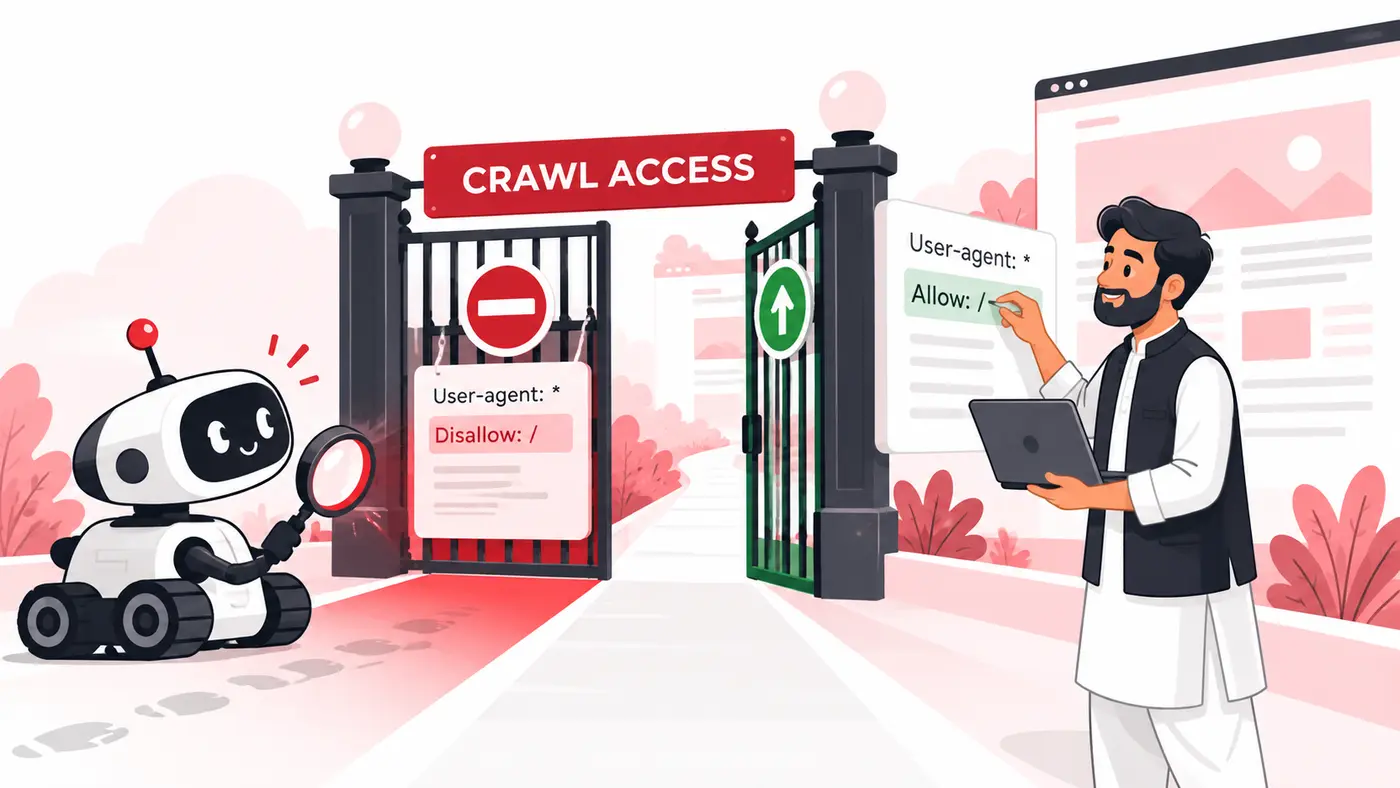
Direct answer: “Blocked by robots.txt” means Google was not allowed to crawl the URL under the robots rules it fetched for that hostname. First decide whether the block is intentional. If the page should rank, remove the narrow rule causing the block and test access. If the page should disappear from search, robots.txt alone is usually the wrong removal method because Google must crawl a noindex directive to see it.
Robots.txt controls crawling, not guaranteed indexing
A robots.txt file tells compliant crawlers which paths they may request. It does not erase a known URL from Google. A blocked URL can sometimes appear without a description when other pages link to it. For deliberate deindexing, allow crawling long enough for Google to see noindex, or use an appropriate removal and status strategy.
Rules are scoped to an exact protocol and host. https://example.com/robots.txt does not govern http://example.com or a separate subdomain. WordPress also exposes a virtual robots.txt response when no physical file overrides it.
Start with intent
URL type |
Desired outcome |
Likely action |
|---|---|---|
Public article/service |
Crawl and index |
Remove accidental block |
Admin/login utility |
Keep out of crawl |
Retain narrow disallow |
Internal search/filter pattern |
Control crawl |
Review links and pattern carefully |
Page to remove from index |
Noindex or proper status |
Do not rely on robots alone |
Staging site |
Keep private |
Authentication is stronger than robots.txt |
Step 1: fetch the exact robots.txt file
Open /robots.txt on the same protocol and hostname as the affected URL. Record its HTTP status, redirects and body. A CDN, host, security plugin or physical file can serve a different version from the one you expect in WordPress.
- Check apex and www hostnames separately.
- Check important subdomains separately.
- Confirm the file is plain text and reachable.
- Look for broad Disallow rules such as / or a parent directory.
- Review groups for Googlebot as well as the wildcard user-agent.
Step 2: identify the matching rule
Robots matching is path-based and the most specific applicable allow or disallow rule determines access for Google’s crawlers. Test the full URL, including case and encoded characters. Do not assume a rule only affects one template because its path name looks familiar.
Use Search Console URL Inspection and Google’s robots testing facilities where available. Also test a small set of URLs above and below the affected path. This reveals whether the rule is appropriately narrow or blocks an entire content family.
Common accidental patterns
- Disallow: / left behind after staging or maintenance.
- Disallow: /blog/ when all posts live under that directory.
- A security plugin generating bot-specific rules.
- A host-level file overriding WordPress output.
- An old rule cached at a CDN edge.
- Blocking CSS or JavaScript directories needed for rendering.
Step 3: find which layer owns the rule
In a standard WordPress setup, the visible file may be virtual. An SEO plugin can filter it, but a physical robots.txt file in the web root usually takes precedence. Managed hosts, reverse proxies and security services may also inject a response. Change the layer that actually serves the file; editing a dashboard field that is being overridden accomplishes nothing.
Before editing, save the current content. Make the smallest possible change. Avoid replacing a carefully tuned file with a generic template copied from another site.
Step 4: correct access safely
For an indexable page, remove the matching disallow or add a more specific Allow when that structure is intentional. Ensure the page itself returns 200, is not noindex, has a consistent canonical and is internally linked. Robots access alone does not make a weak or duplicate page indexable.
For private data, use authentication and authorization. Robots.txt is public and advisory; it can reveal paths and does not prevent a visitor from opening them.
Do not block a URL before deindexing completes
If a page currently appears in search and you add both noindex and a robots block, Google may never fetch the noindex. Allow crawling, serve the directive, wait for processing, and then consider crawl controls if they remain necessary. For permanently missing resources, return 404 or 410.
Step 5: clear caches and validate
- Purge the page/CDN cache for robots.txt.
- Fetch the file from an external, logged-out request.
- Run a live URL inspection for representative pages.
- Check that required page resources are crawlable.
- Resubmit the sitemap only if its contents changed.
- Monitor server logs for renewed Googlebot access.
- Review Search Console after recrawl without repeatedly changing rules.
Worked example
A site launches from staging with Disallow: / in a physical root file. The SEO plugin displays a permissive virtual file in the dashboard, causing confusion. Fetching the public response proves the root file wins. The correct repair is to back up and edit that physical file, purge the CDN, confirm the public response, then inspect the homepage and one deep article.
Robots.txt, noindex and canonical are different tools
Tool |
Primary job |
Requires crawling? |
|---|---|---|
robots.txt |
Control crawler requests |
Rule is fetched separately |
noindex |
Prevent a page from appearing in search |
Yes, Google must see it |
canonical |
Signal the preferred duplicate URL |
Yes, Google must process it |
404/410 |
State that a resource is unavailable |
Crawler receives the status |
authentication |
Prevent unauthorized access |
Access is denied before content |
Common mistakes
- Using robots.txt to protect confidential content.
- Blocking duplicate URLs and expecting Google to read their canonicals.
- Editing the wrong hostname or an overridden virtual file.
- Disallowing all of wp-content and preventing rendering resources.
- Copying rules from a different site architecture.
- Removing every rule because one public page is blocked.
What if Search Console still shows the old block?
Check the live test first. Search Console reports can lag behind the current response. If the public file is corrected but the live test remains blocked, investigate redirects, CDN variants, DNS/host differences or user-agent-specific responses. Keep the configuration stable while Google refreshes the file.
For wider launch and configuration checks, use the WordPress SEO setup guide.
A change-control checklist for teams
Assign one owner for the public robots response, even if the host, developer and SEO plugin can all influence it. Store the approved rules with a plain-language reason for every nonstandard disallow. Before deployment, test a representative public page, admin route, media file and required script. After deployment, compare the fetched file with the approved version.
For agencies, include robots.txt in launch and migration sign-off. Record host variants, CDN behavior and the person authorized to edit the file. This prevents an emergency SEO change from being overwritten by a later server deployment.
Frequently asked questions
Where is robots.txt in WordPress?
It may be generated virtually at /robots.txt or exist as a physical file in the site root. The public response is the source of truth.
Should wp-admin be blocked?
Narrow restrictions for administrative paths are common, while required public endpoints and assets must remain accessible.
Can I submit robots.txt in Search Console?
Google fetches it automatically. Verify the public version and use inspection/testing tools rather than treating submission as the fix.
Will removing a block guarantee indexing?
No. It permits crawling. Quality, duplication, canonicalization and other indexability signals still apply.
Conclusion
Treat a robots warning as an access-control diagnosis. Confirm the exact host and live file, find the matching rule, decide the intended outcome, change only the responsible layer and validate representative URLs. Separating crawl control from index control prevents most costly mistakes.
Primary references: Google robots.txt introduction and Google robots.txt specification.